How to Animate a Still Image into Video with AI: Complete Guide 2026
Turning a simple image into a professional-quality animated video is now within everyone's reach. A complete guide: the best AI image-to-video tools, animation techniques, motion prompts and advertising use cases for Reels and TikTok.
SociaLover Team · Updated · 14 min read
To animate a still image with AI you upload it as the first frame, describe the motion in a short prompt, optionally lock a last frame, and let an image-to-video model render 4 to 30 seconds. In Studio Video that means Kling 3.0 or Wan 2.7 for most product shots, Veo 3.1 for 4K, Seedance 2.5 for 30 seconds.
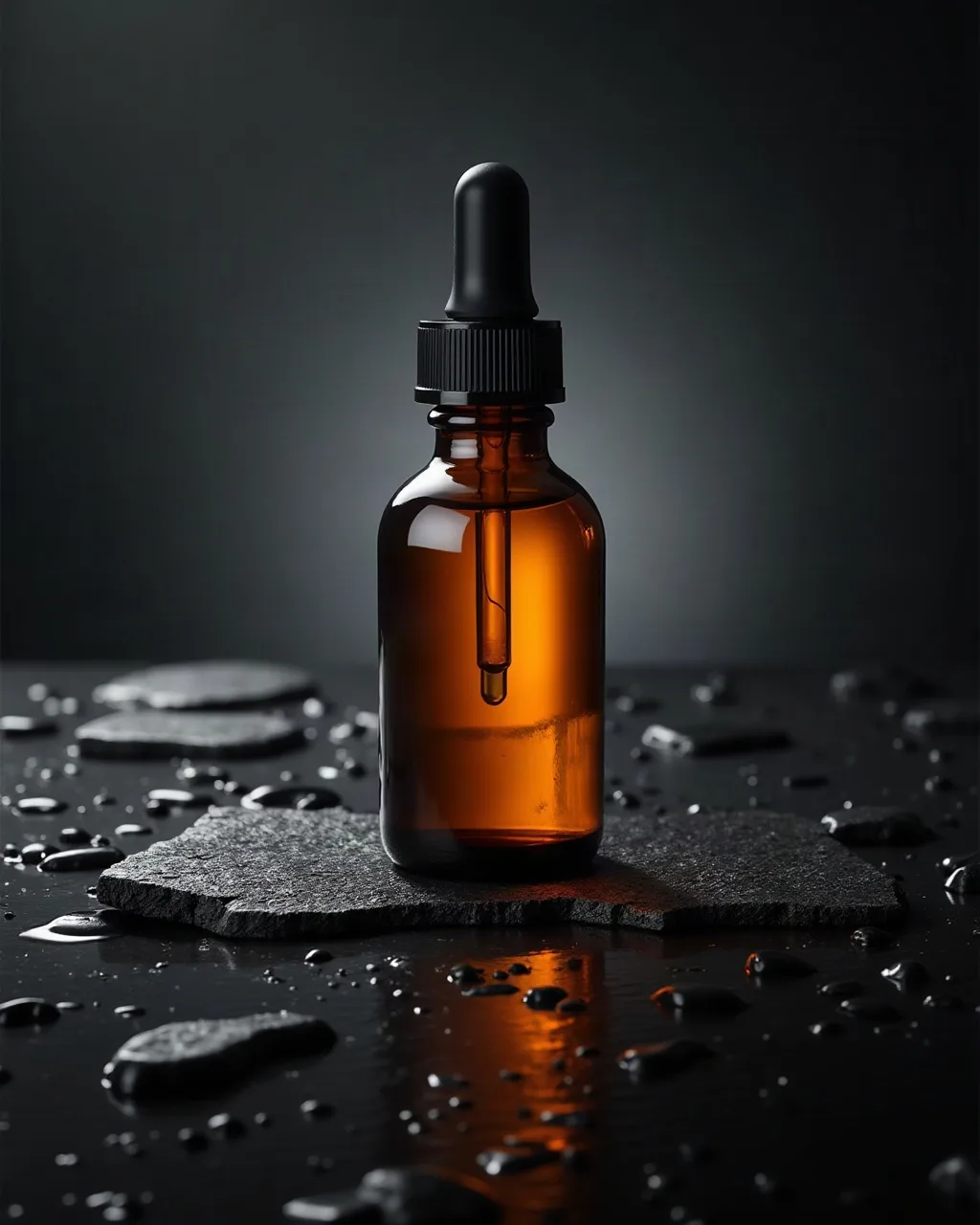
A static serum visual on the left, and the kind of clip Studio Video generates when a product like this becomes frame one. Your image becomes the first frame, and the motion prompt decides everything that follows. For a product shot, an instruction of the form "Slow zoom in on the product, soft parallax background, natural lighting, cinematic".
How does AI image-to-video work?
Your image becomes the first frame of the clip, and a video diffusion model generates every following frame from it and from a motion prompt that describes what should move.
Image-to-video models use a video diffusion architecture that "imagines" the intermediate frames between the initial state (your image) and a final state defined by a motion prompt. The model learns from millions of video sequences to understand how objects, people, and environments move naturally in the real world.
The motion prompt plays a central role: it tells the model what kind of movement to apply: camera movement, animation of specific elements in the image, or a combination of both. The more precise the prompt, the more predictable and controllable the result. If you do not have the still yet, generate the still image first: a clean, high-resolution source is half of the final clip.
Key takeaway
Your image is the first frame of the clip, and everything after it is interpolation: the model does not "create" new elements, it invents plausible movement for what is already visible. If your image shows a person from behind, the model cannot turn their head to reveal their face. Several models (Veo 3.1, Kling 3.0, Seedance 2.5 and 2.0, Wan 2.7) also accept a last frame, so you can define where the shot has to land as well as where it starts.
Image-to-video vs text-to-video: when to start from an image
Start from an image whenever the subject already exists and must not change; start from text when the scene is still open and you want the model to propose it.
- Start from an image when the product, the packaging, the logo or the face has to be exactly right. The first frame locks it; a text prompt can only describe it, and a described product is never quite your product.
- Start from text for mood shots, B-roll and scenes where no specific object has to be recognizable. You save the image step, and the model has more freedom to compose the frame.
- Combine the two for a storyboarded ad: generate each key frame as a still, then animate frame to frame with a first and a last image. That is exactly what Creator Frames is built for.
Which image-to-video model should you use?
Kling 3.0 or Wan 2.7 for most product shots, Veo 3.1 when the clip has to go beyond 1080p, Seedance 2.5 when one image has to carry 30 seconds: those are the four we recommend for image-to-video.
Rather than ranking models with a score, here are the facts that actually decide which one you pick: how long a clip can be, what resolution it comes out in, whether it accepts a last frame, and whether it accepts a photo of a real person's face as a reference. Seedance 2.0 and Happy Horse 1.1 are listed for completeness. For the editorial scores behind the recommendation, read our Kling 3.0 vs Veo 3.1 comparison.
| Model | Clip lengths | Max resolution | First + last frame | Photo of a real face |
|---|---|---|---|---|
| Veo 3.1 (Google) | 4 / 6 / 8 s | Up to 4K | Yes | Accepted |
| Kling 3.0 (Kuaishou) | 5 / 10 / 15 s | 1080p | Yes | Accepted |
| Wan 2.7 (Alibaba) | 5 / 10 / 15 s | 1080p | Yes | Accepted |
| Seedance 2.5 (ByteDance) | 5 / 10 / 15 / 30 s | 1080p | Yes | Refused |
| Seedance 2.0 (ByteDance) | 5 / 10 / 15 s | 1080p | Yes | Refused |
| Happy Horse 1.1 (Alibaba) | 3 / 5 / 8 / 10 / 15 s | 1080p | No | Accepted |
Veo 3.1 is the only one of the lineup that reaches 4K, and it is the premium option, with audio laid down on every clip. Two lighter variants exist for iterating before the final render: Veo 3.1 Fast, which also supports a last frame, and Veo 3.1 Lite, which does not. Kling 3.0 gives 15 seconds in 1080p while staying among the most economical models of the catalog, which makes it the workhorse for animating product shots and avatar portraits; Kling 2.6 remains available for 5 or 10 seconds and also accepts a last frame. Wan 2.7 matches the 15 seconds of Kling at 720p or 1080p, with a last frame, and is the cheapest route when you draft at 720p; it has no audio of its own.
Seedance 2.5 is the model for the long take: 5, 10, 15 or 30 seconds from one image, in up to 1080p, with a first and a last frame and optional audio. It carries one restriction that decides everything, shared with Seedance 2.0: it refuses a photo of a real person's face as a reference, so use it on products, objects and scenes rather than on portraits of real people. Seedance 1.5 Pro is the lighter option of that family and also supports a last frame. Happy Horse 1.1 is the newcomer: 3 to 15 seconds with audio always on, a real face accepted, but no last frame.
All of them are available in Studio Video, so you can send the same source image to two different models and compare the motion before committing to the final render. For a product shot where the camera has to move like a real one, Camera Director for realistic product motion turns the same still into a clip with a directed camera path.
Which camera motion suits which visual?
A slow zoom for a single product, a pan for a wide image, parallax for a lifestyle scene, an orbit for an object worth seeing from every side, and a handheld shake for anything that has to feel UGC.
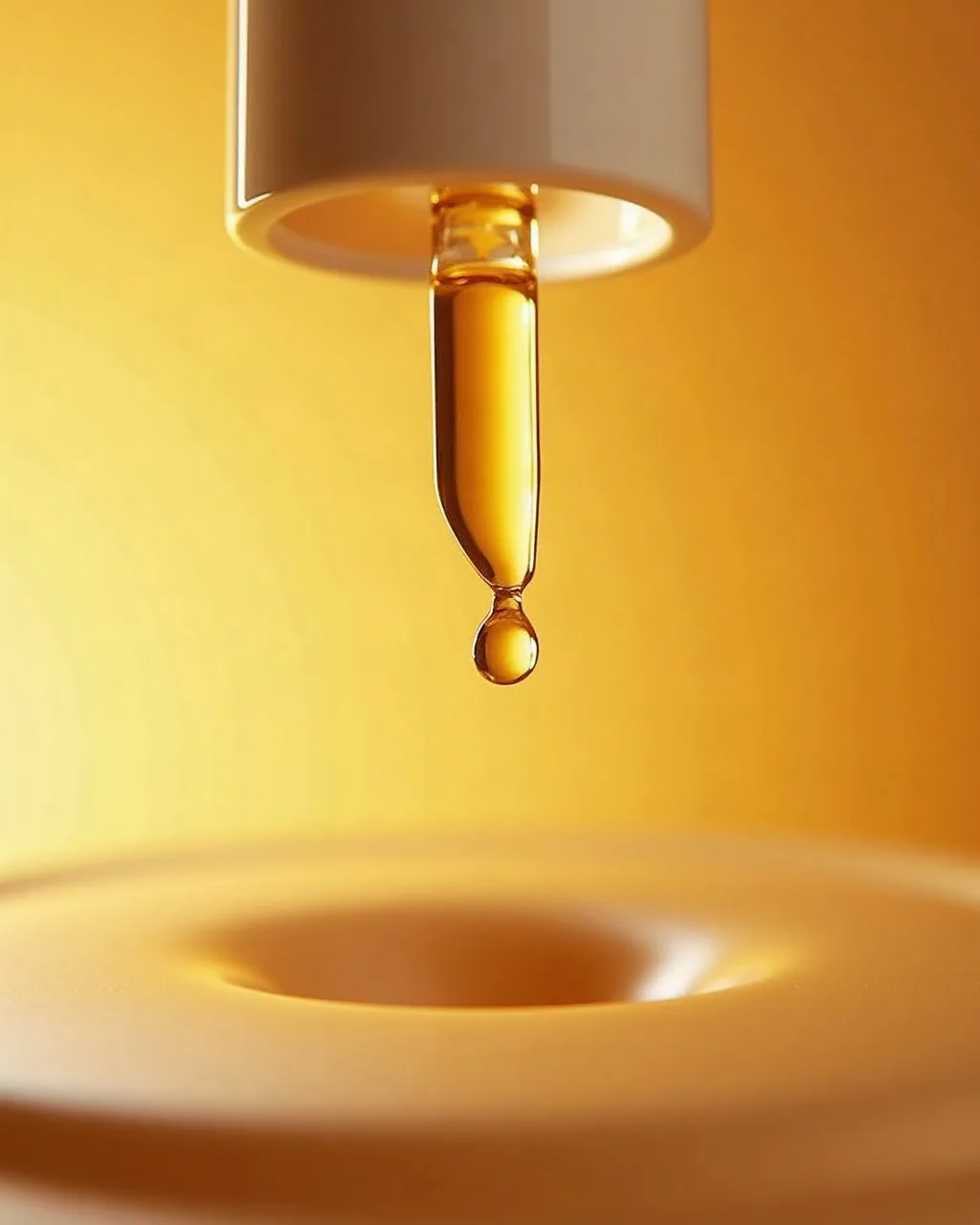
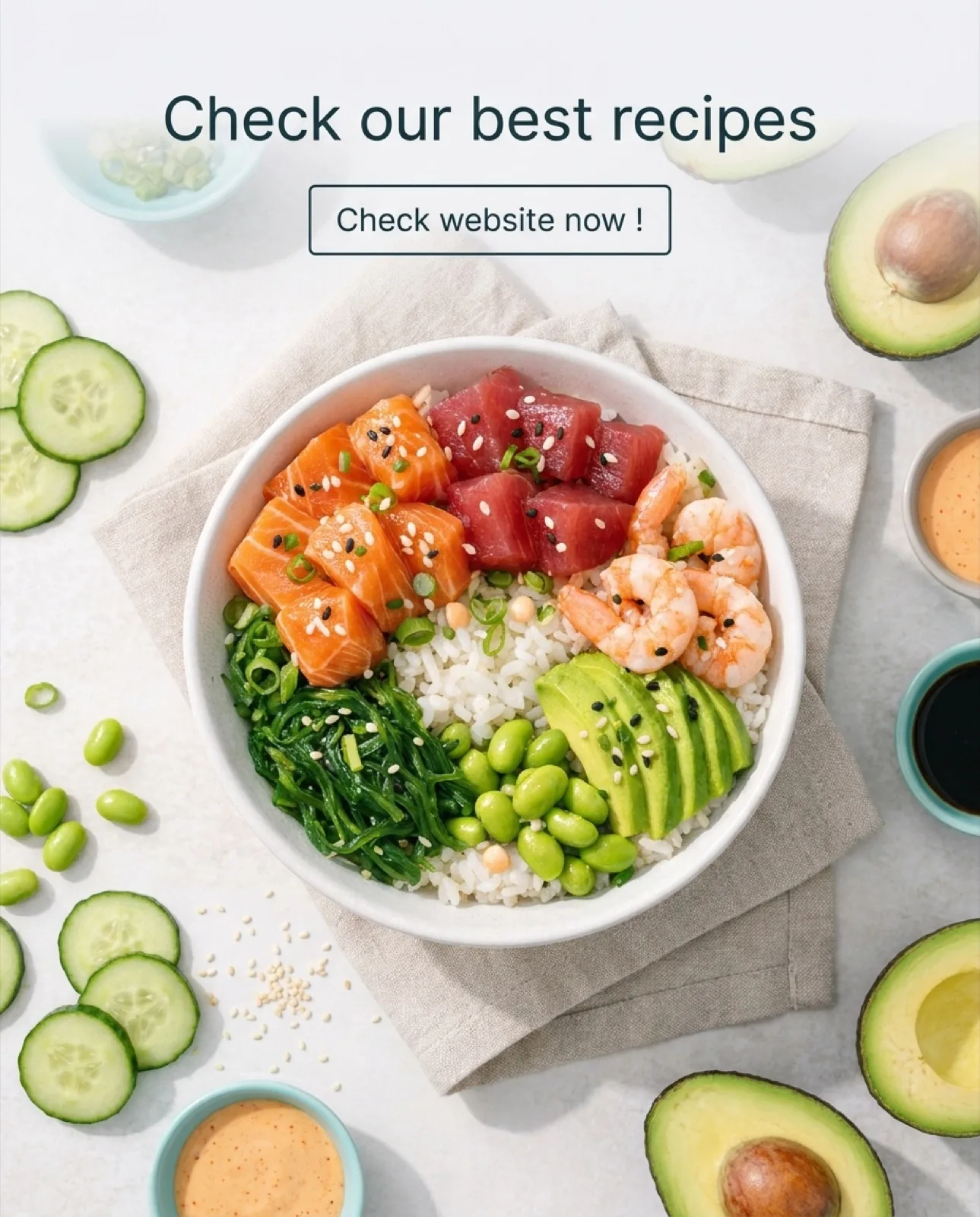
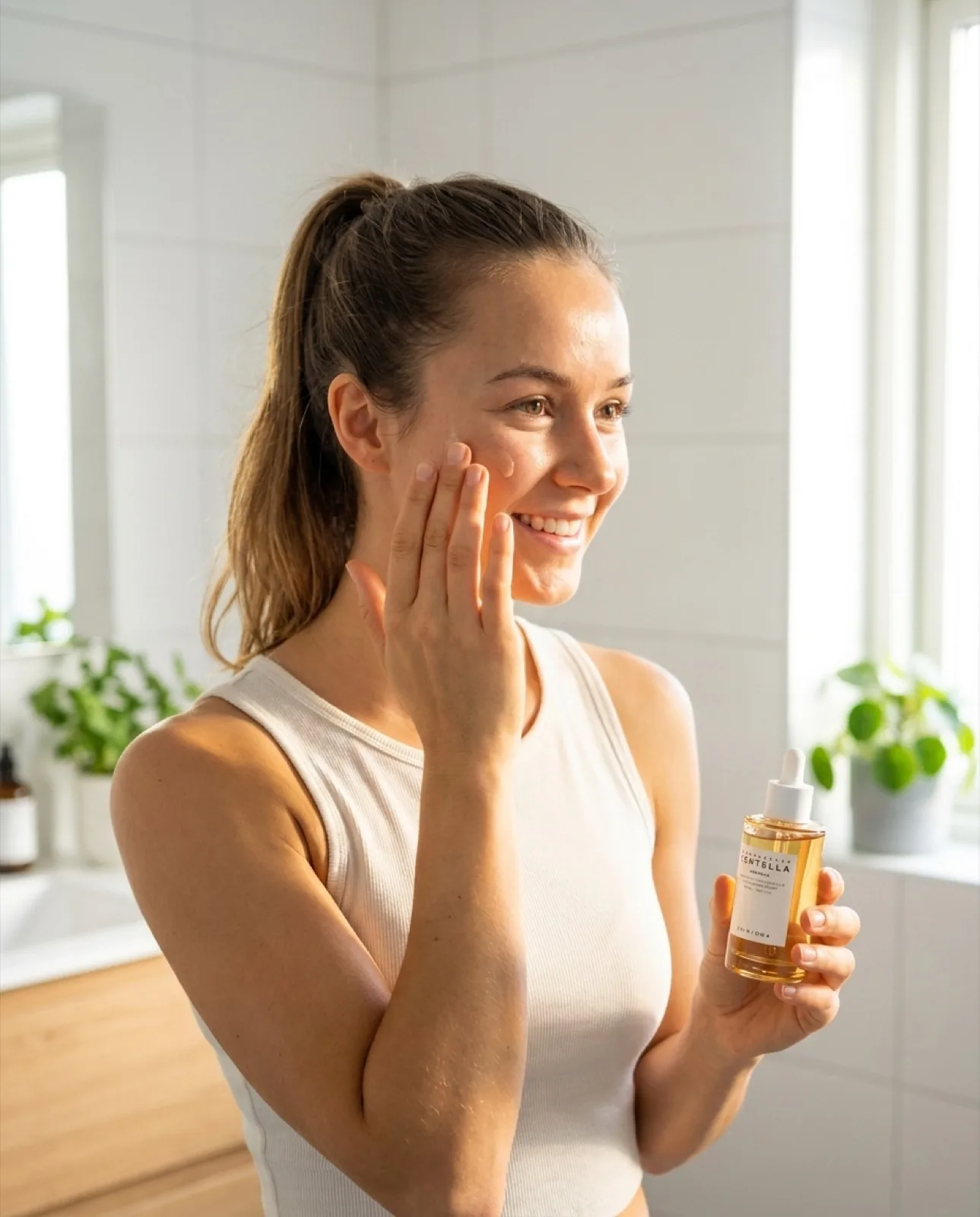
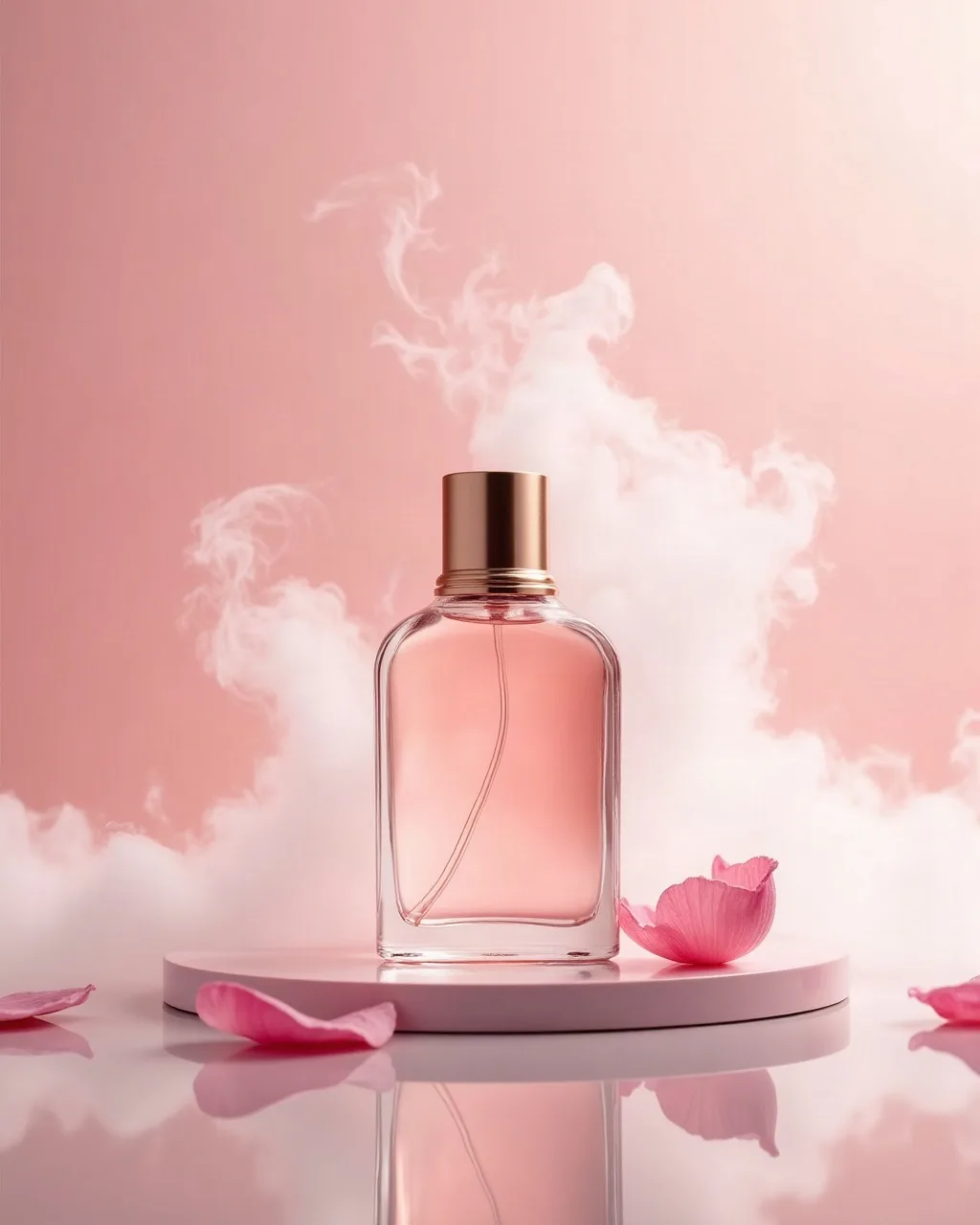
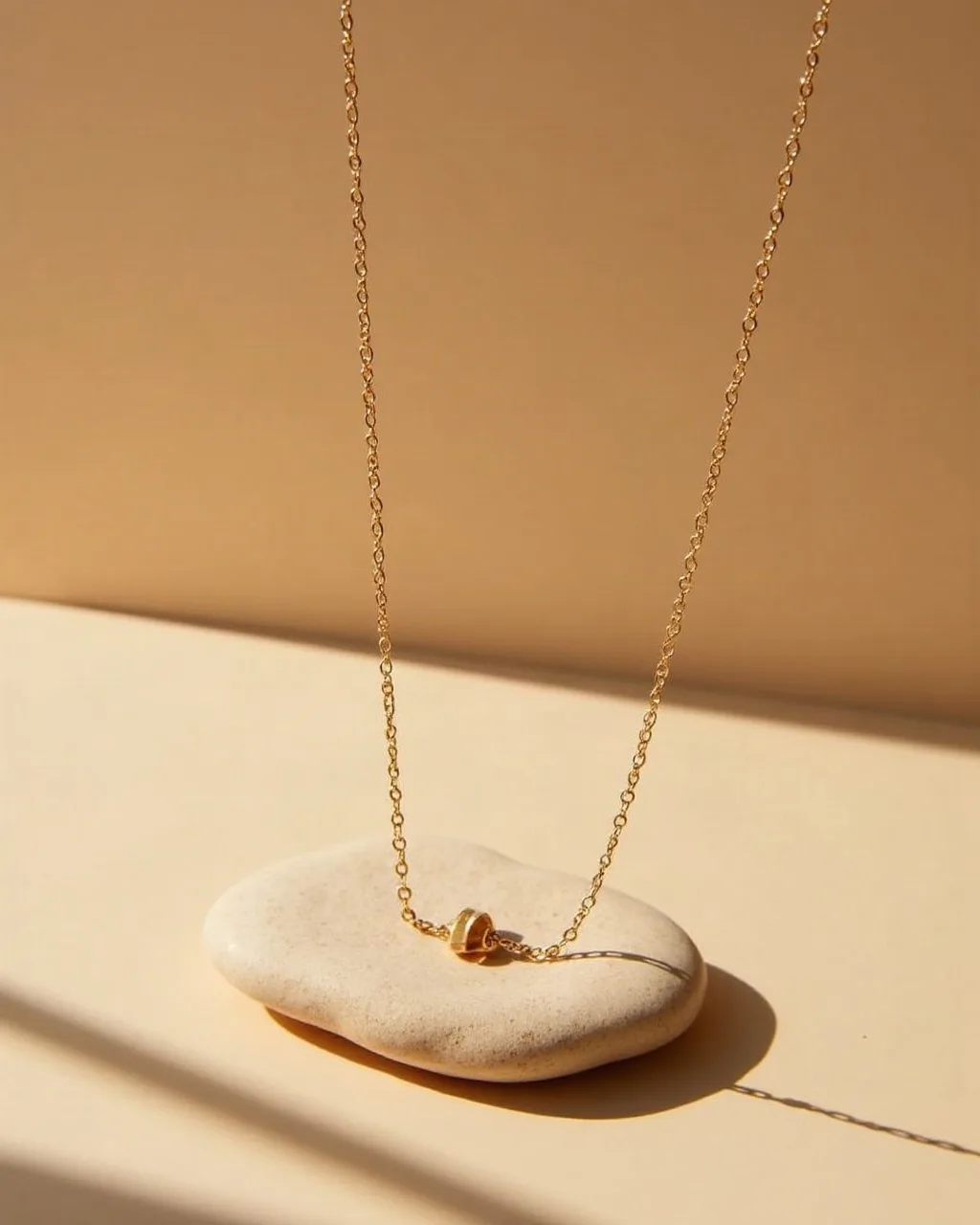
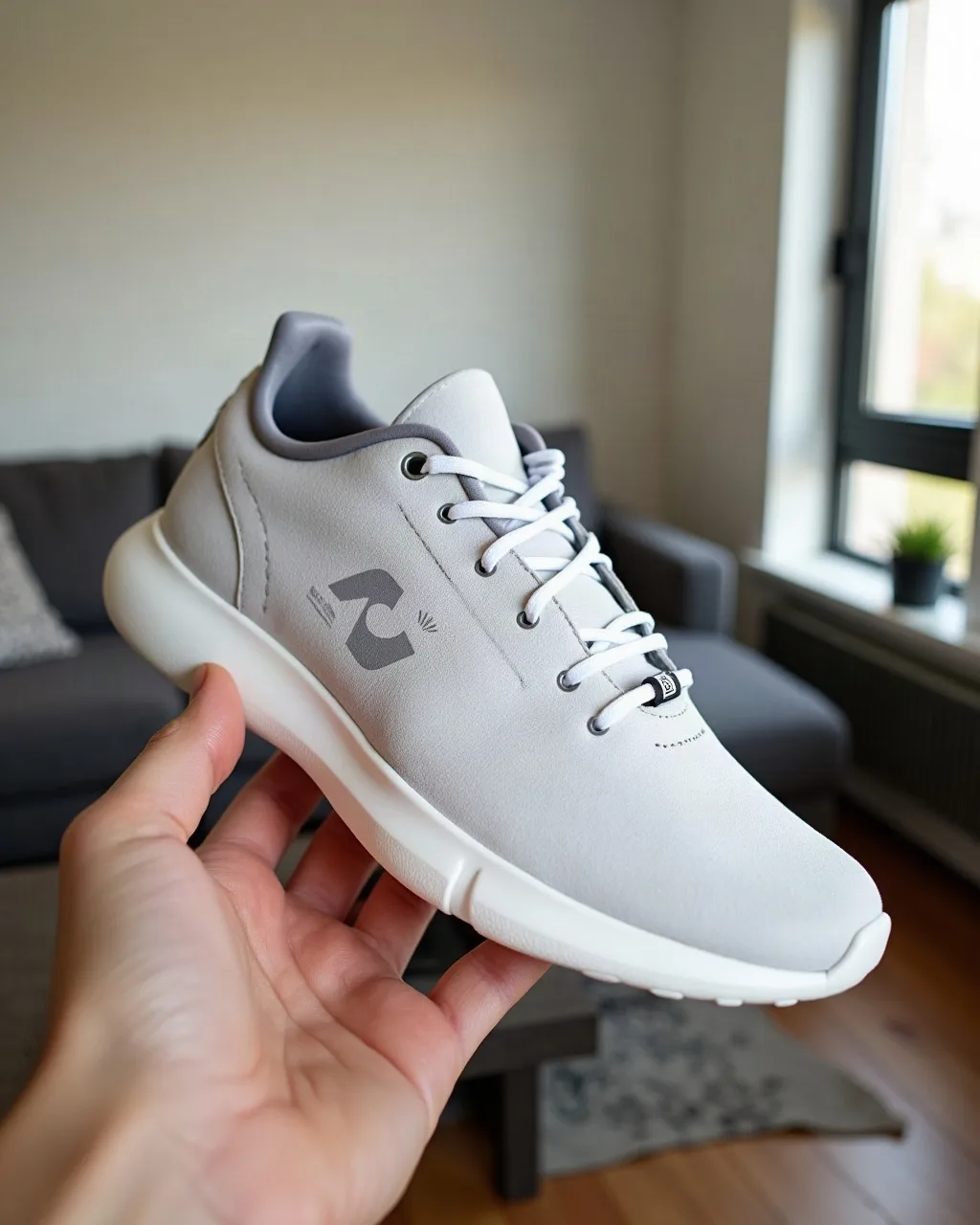
Which motion suits which visual. These are static SociaLover creatives: the label is the movement you would ask for on that kind of shot, not something visible in the image itself.
The zoom is the simplest and most effective movement: a slow zoom in on a product instantly creates a sense of showcasing it. A horizontal or vertical pan suits wide images and products with several details worth travelling across. Parallax (the Ken Burns effect) moves the different planes of the image at different speeds to create an illusion of depth, which is very impactful on lifestyle visuals.
Animating specific elements means moving only part of the frame: the steam from a coffee, a model's hair, the water around a product. A camera orbit rotates around the subject and is ideal for 360-degree product visuals. Finally, a shake or camera wobble adds a handheld effect. Perfect for the UGC style and for content that has to feel spontaneous rather than produced.
What motion prompts actually work?
Short prompts that name one camera move, one subject motion and one lighting cue, in that order: here are the five templates we reuse most.
E-commerce product photo
"Slow zoom in on the product, soft parallax background, natural lighting, cinematic"
Portrait / avatar
"Subtle head movement, natural breathing, slight smile, soft camera float, shallow depth of field"
Lifestyle visual
"Gentle Ken Burns effect, slow dolly forward, warm ambient light flicker, cinematic grain"
Nature / outdoor scene
"Slow pan left, trees swaying gently, clouds moving, natural parallax depth"
UGC / spontaneous style
"Handheld camera shake, slight tilt, natural movement, documentary style"
20 motion prompts for product and lifestyle shots
Twenty prompts you can paste as they are, one per shot type, all written for a still image used as the first frame: name the move, keep it slow, and say what must stay still.
| Shot | Motion prompt |
|---|---|
| 1. Product turntable | "Slow 360-degree turntable rotation of the product, fixed camera, soft studio lighting, seamless loop" |
| 2. Dolly-in on the product | "Slow dolly-in toward the product, shallow depth of field, background softly defocusing, cinematic" |
| 3. Parallax hero | "Gentle parallax, foreground and background drifting at different speeds, product perfectly still" |
| 4. Camera orbit | "Slow camera orbit around the product, about 45 degrees, consistent reflections, clean studio backdrop" |
| 5. Tilt-up reveal | "Camera tilts up slowly from the base to reveal the full product, dramatic rim light, dark background" |
| 6. Steam on a hot drink | "Thin steam rising from the cup, slow and continuous, everything else static, warm morning light" |
| 7. Pour shot | "Liquid pouring slowly into the glass, realistic splash, camera fixed, macro detail" |
| 8. Condensation | "Condensation droplets sliding slowly down the bottle, macro focus, cool blue tone, camera static" |
| 9. Skincare texture | "Cream texture swirling slowly, glossy highlights, macro, pastel background, seamless motion" |
| 10. Perfume mist | "Fine mist spraying from the bottle, slow motion, droplets glowing in backlight, elegant" |
| 11. Jewelry sparkle | "Slow push-in on the ring, light sweeping across the stone, sparkles catching the light, black velvet" |
| 12. Floating sneaker | "Sneaker floating and rotating slowly in mid-air, subtle bounce, dust particles drifting, studio light" |
| 13. Fabric in a breeze | "Fabric rippling gently in a light breeze, folds catching the light, camera static" |
| 14. Unboxing hands | "Hands slowly lift the lid of the box, natural finger movement, top-down camera, soft shadows" |
| 15. Flat lay pan | "Slow horizontal pan across the flat lay, overhead camera, natural window light, objects perfectly still" |
| 16. Model turning | "The model turns slowly toward the camera, natural weight shift, hair moving softly, soft daylight" |
| 17. Lifestyle walk | "Person walking away slowly along the street, gentle handheld camera, golden hour, natural pace" |
| 18. Cafe portrait | "Warm ambient light flicker, steam from the cup, subtle head movement, shallow depth of field" |
| 19. Handheld UGC | "Handheld camera shake, slight tilt, natural movement, documentary style, no zoom" |
| 20. Ken Burns lifestyle | "Gentle Ken Burns effect, slow dolly forward, warm ambient light, cinematic grain, nothing else moves" |
How do you avoid artifacts?
Feed the model a large, text-free image, ask for slow movement, keep character motion to micro-movements, and generate several variations: those four habits remove most artifacts.
Avoid images with too much text: letters often get distorted by video models. If your visual contains text, add it in post-production.
Favor high-resolution images (min 1024x1024), image-to-video models struggle with low-resolution images and produce more artifacts.
Movements that are too fast create artificial motion blur. For ads, slow, elegant movements work better than high-energy animations.
With characters, avoid asking for complex movements (jumping, dancing). Models handle micro-movements better: breathing, a nod, a glance.
Always generate 3 to 5 variations for the same prompt, the variability between generations is still significant in 2026.
Frequently asked questions
- How does AI image-to-video actually work?
- Image-to-video models use a video diffusion architecture that imagines the intermediate frames between your image and a final state defined by a motion prompt. Your image is the first frame of the clip and everything after it is interpolation: the model has learned from millions of video sequences how objects, people and environments move, and applies that to what is already in your frame.
- Can the model add something that is not in my image?
- No. It does not create new elements, it invents plausible movement for what is already visible. If your image shows a person from behind, the model cannot turn their head to reveal their face. Choose a source image that already contains everything the shot needs to show.
- Does the model change my product?
- It should not, but it can drift. Your image is the first frame, so the product starts exactly as photographed; deviations appear when the movement is fast, the clip is long, or the camera reveals a side the photo never showed. Keep movements slow, lock a last frame on models that accept one, and check the logo, the label and the proportions on every render before you export.
- Can I animate a photo of a real person?
- Yes with Veo 3.1, Kling 3.0, Wan 2.7 and Happy Horse 1.1, which accept a photo of a real face as the first frame. Seedance 2.5, 2.0 and 2.0 Fast refuse it, as did Sora 2, retired on September 24, 2026. You need the person's consent, and in the EU, Article 50 of the AI Act (applicable since August 2, 2026) requires AI-generated video to be disclosed as such.
- What is the longest clip I can get from one image?
- Thirty seconds, on Seedance 2.5, which offers 5, 10, 15 or 30-second clips from a single image with a first and a last frame. Kling 3.0, Wan 2.7, Seedance 2.0 and Happy Horse 1.1 stop at 15 seconds, and Veo 3.1 at 8. Beyond the ceiling of a model, chain clips by using the last frame of one as the first frame of the next.
- Which models let me set a last frame as well as a first one?
- Veo 3.1, Kling 3.0, Seedance 2.5, Seedance 2.0 and Wan 2.7 all accept a last frame, so you can define where the shot has to land as well as where it starts. The lighter variants of those families also support it: Veo 3.1 Fast, Kling 2.6 and Seedance 1.5 Pro. Happy Horse 1.1 and Veo 3.1 Lite do not.
- What resolution should my source image be?
- At least 1024 by 1024 pixels. Image-to-video models struggle with low-resolution sources and produce noticeably more artifacts. Avoid images that contain a lot of text as well: letters get distorted by video models, so add any typography in post-production rather than baking it into the source.
- Which model should I animate my image with?
- Start from your constraints rather than from a ranking. Beyond 1080p, Veo 3.1 is the only one that reaches 4K. Beyond 8 seconds in one generation, Kling 3.0, Wan 2.7 or Seedance 2.5, the only one that reaches 30. A photo of a real person rules out the Seedance family. Test the movement on Wan 2.7 at 720p before committing tokens to the final render.
- Why do my animated images have artifacts?
- Four usual causes: text in the source image, a source below 1024 by 1024 pixels, a movement asked for too fast (which creates artificial motion blur), and complex character motion such as jumping or dancing. Models handle micro-movements like breathing, a nod or a glance far better. Generate 3 to 5 variations of the same prompt: variability between generations is still significant in 2026.
Conclusion
AI image-to-video is one of the highest-leverage techniques available to marketers in 2026. You get more out of the assets you already own (product photos, campaign visuals, generated images) by turning them into motion in a matter of minutes. Studio Video builds this step directly into your creative workflow, with no third-party account to manage, and Creator Frames extends it to a full storyboard animated frame to frame.